Fix M365 SSO Error: Unable to Update ImmutableID for Federated User After Rename
Issue Description
A user was unable to sign in to Microsoft 365/Azure services using Single Sign-On (SSO). The login attempt consistently resulted in authentication errors despite the account appearing correctly configured. M365 throws the AADSTS51004 error (“user does not exist”)
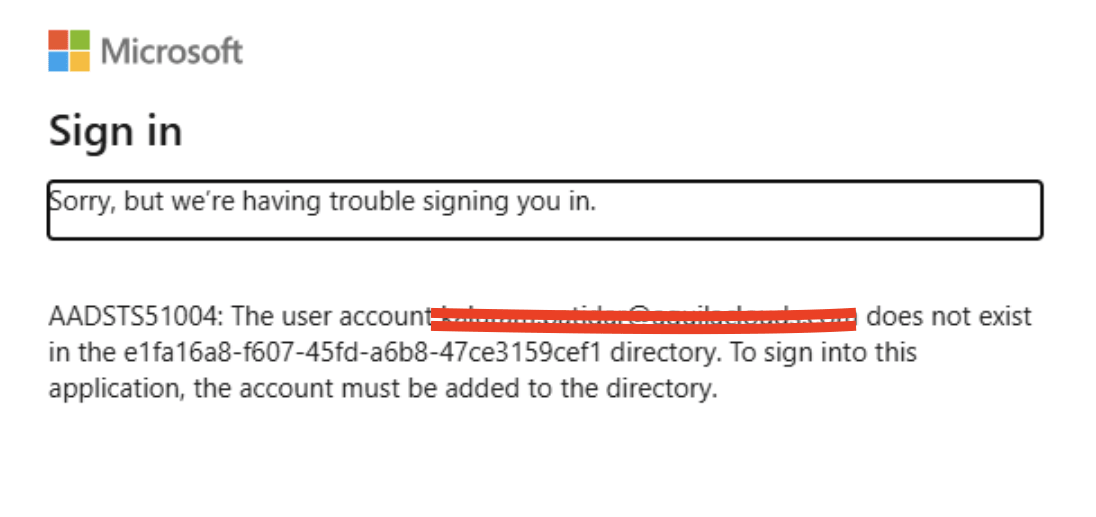
During the investigation, it was discovered that the user had recently changed their username and email address. The updated User Principal Name (UPN) and primary email address were successfully synchronized and reflected correctly in the Microsoft 365 Admin Center. Additionally, the user’s previous primary email address was retained as an alias to ensure email continuity.
There were two root causes:
The organization uses Google Workspace as the Identity Provider (IdP) and Microsoft 365 as the Service Provider (SP) in a federated SSO environment.
-
- Immutable ID mismatch – The Google Workspace-to-Microsoft 365 sync did not update the user’s Immutable ID after the account rename, resulting in an identity mismatch during SSO authentication.
-
- Federated domain restriction – Attempts to update the Anchor/Immutable ID via PowerShell failed because the domain was federated, which prevents modification of these attributes while federation is enabled.
Solution:
Since the domain was federated, the Immutable ID could not be updated directly. To resolve the issue, the user’s UPN was temporarily changed to the tenant’s .onmicrosoft.com domain, allowing the Immutable ID to be updated. Once the correct Immutable ID was set, the UPN was changed back to the federated domain
Steps to Update the Immutable ID for a Federated User
1. Install the Microsoft Graph PowerShell Module
Open PowerShell as Administrator and install the Microsoft Graph module:
Install-Module Microsoft.Graph -Scope CurrentUser -Repository PSGallery -Force2. Connect to Microsoft Graph
Authenticate using an account with sufficient permissions:
Connect-MgGraph -Scopes "User.ReadWrite.All"3. Define the User Details
Replace the values below with your own tenant and user information.
Example:
-
- Federated UPN:
yogesh.sharma@techcloud.com - Temporary Cloud UPN:
yogesh.sharma@tech4cloud.onmicrosoft.com
- Federated UPN:
$ManagedUPN = "yogesh.sharma@tech4cloud.onmicrosoft.com"
$FederatedUPN = "yogesh.sharma@techcloud.com"
4. Temporarily Switch the User to the .onmicrosoft.com Domain
Run the following command to update the user’s UPN to the temporary Address:
Update-MgUser -UserId $FederatedUPN -UserPrincipalName $ManagedUPN
5. Update the User Principal Name and Immutable ID
Run the following command to update the user’s UPN and Immutable ID:
Update-MgUser -UserId $ManagedUPN -UserPrincipalName $FederatedUPN -OnPremisesImmutableId $FederatedUPN5. Verify the Changes
Once the command completes successfully, verify that the user’s UPN and Immutable ID have been updated correctly and test the SSO login.
Note: In some cases, Microsoft 365 may not process the change immediately. If the command fails, wait a few minutes and try again. Multiple attempts may be required before the update is accepted.
This guide provides a proven solution for the following Microsoft 365 and Azure AD SSO issues:
- Unable to update the ImmutableID for a federated user after a rename.
- Microsoft 365 SSO failures caused by an ImmutableID mismatch after a user rename.
- How to modify the ImmutableID for federated users in Microsoft 365 and Azure AD.
- Microsoft 365 SSO login errors after renaming a user in Google Workspace.
- Single Sign-On authentication failures between Google Workspace and Microsoft 365 after a user rename.
- Azure AD and Microsoft 365 SSO issues affecting recently renamed users.