
Here’s how you can do it, following Google’s recommended steps:
- Sign in to your Google Account: Go to myaccount.google.com and sign in with your company email credentials.
- Go to Security: In the left navigation panel, click on “Security.”
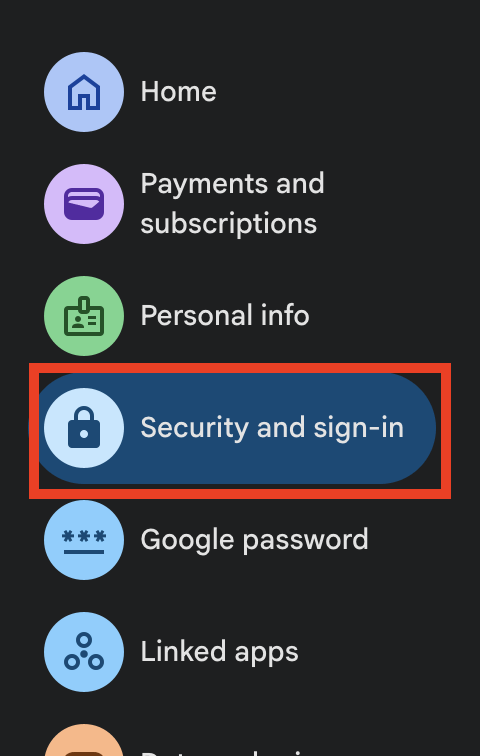
- Click on “2-Step Verification.” You may need to sign in again for security purposes.
- Turn on 2-Step Verification: Click “Turn on.”
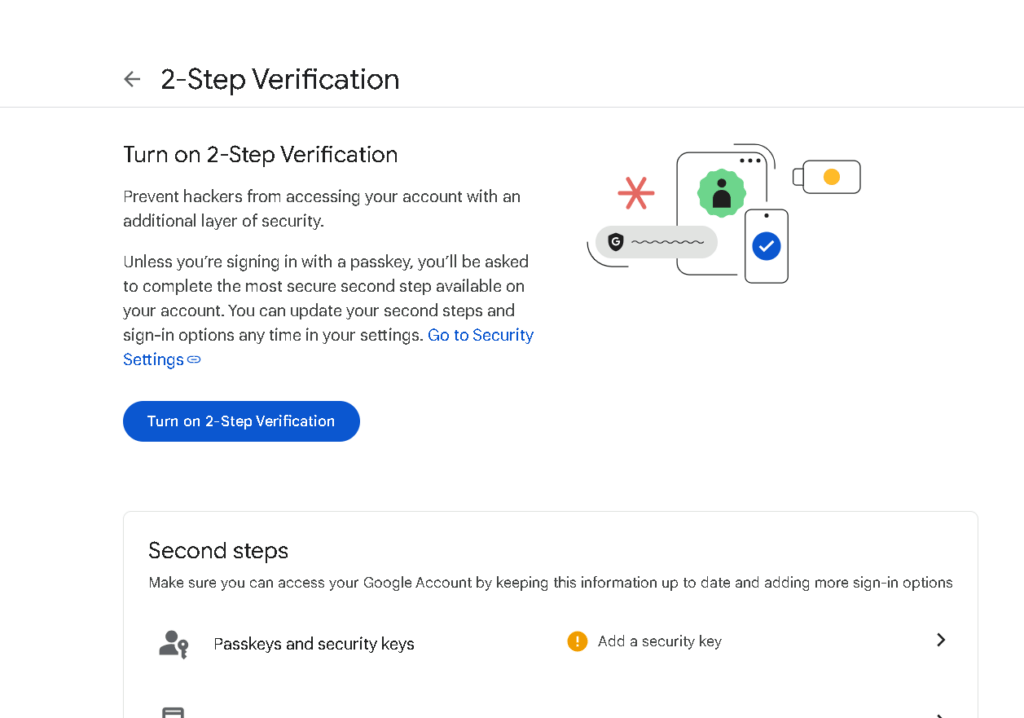
- Choose a second step: Google offers several options for 2FA. We recommend using
- Google Prompt (Recommended): This sends a prompt to your phone asking you to tap “Yes” to confirm your login. It’s the easiest and most secure option. If you have a compatible Android or iOS device, this will be the most seamless option.
- Phone number (SMS or voice call): Google can send a verification code to your phone via SMS message or a voice call. This is a good option if you don’t have a smartphone or prefer not to use an app.
- Authenticator app: An authenticator app (like Google Authenticator or Authy) generates unique codes on your phone that you enter during login.
- Follow the on-screen instructions: Google will guide you through setting up your chosen second step. This might involve installing an app, scanning a QR code, or entering your phone number.
- For Phone number (SMS or voice call):
- Insert your mobile phone number
- Insert OTP received on your phone and verify
- Insert your mobile phone number
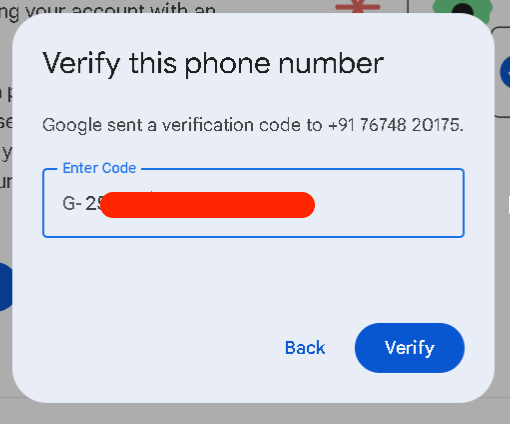
- Insert OTP received on your phone and verify
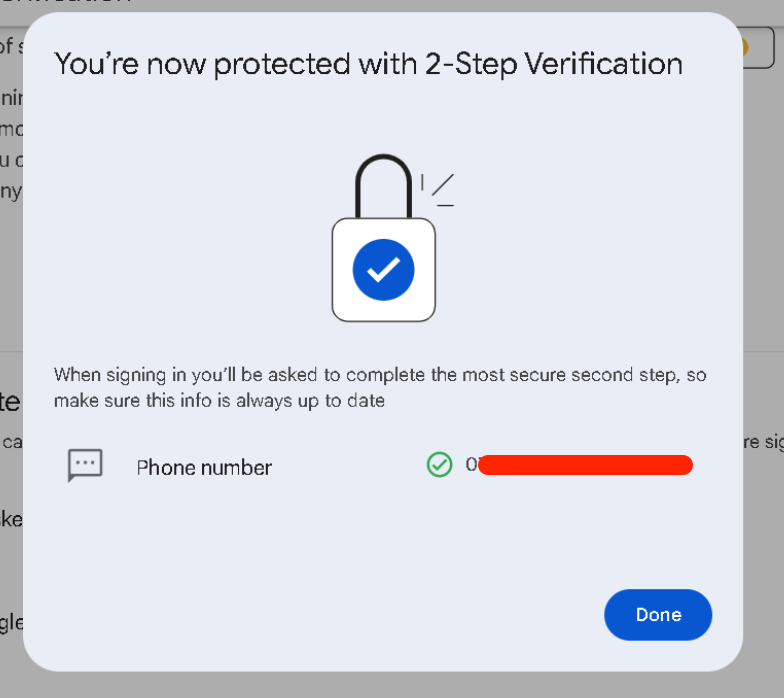
8. Again Go to Security: In the left navigation panel, click on “Security.”
a) click on “2-Step Verification.”
b) Turn on 2-Step Verification: Click “Turn on.”
Set Up the Authenticator App
- On the 2-Step Verification page, look for the “Authenticator app” section. If you haven’t set it up before, it will likely say “Set up Authenticator”. Click on it.
- A pop-up window will appear asking you to choose the type of phone you have (Android or iPhone). Select your phone type and click Next.
Step 3: Link Your Google Account with the Authenticator App
You will now be presented with two ways to link your account:
- Using a QR Code (Recommended):
- Open the Google Authenticator app on your smartphone.
- Install authentication on your mobile device from Playstore : https://play.google.com/store/apps/details?id=com.google.android.apps.authenticator2&hl=en_IN&pli=1
- Install authentication on your mobile device from Playstore : https://apps.apple.com/us/app/google-authenticator/id388497605
- Tap the “+” (plus) icon, usually located at the bottom right of the app.
- Select “Scan a QR code”. The app will ask for permission to access your camera. Grant the permission.
- Point your phone’s camera at the QR code displayed on your computer screen (in the browser window from Step 2). Make sure the QR code is within the frame on your phone’s screen.
- Once the app successfully scans the QR code, your Google Account will be added to the Authenticator app, and it will start displaying a time-based six-digit verification code.
- Open the Google Authenticator app on your smartphone.