
The user can independently configure MFA by following these steps:
1. Log in to portal.office.com.
2. Open a new tab in the same browser and go to https://aka.ms/mfasetup.
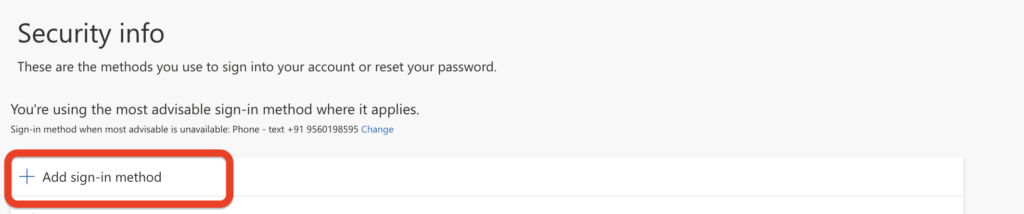
3. Click Add sign-in method and select Phone.
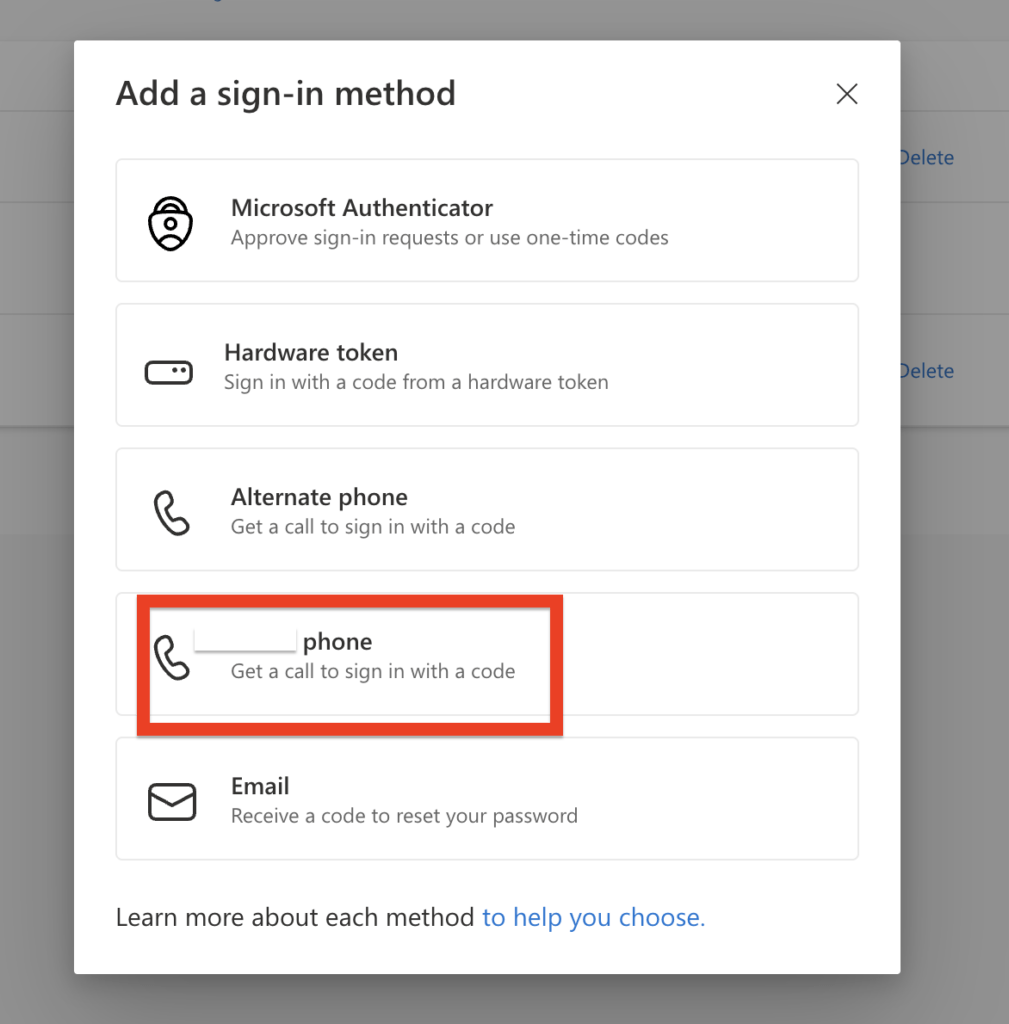
4. Select your country code and enter your mobile number.
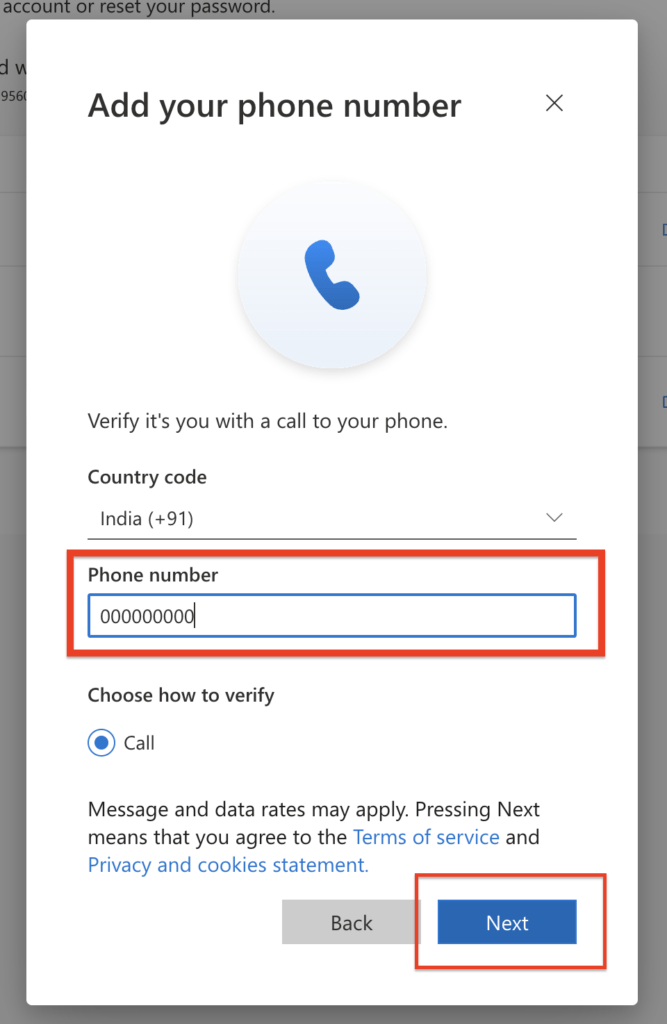
5. Choose either Call me or Text me a code, then click Next to verify.
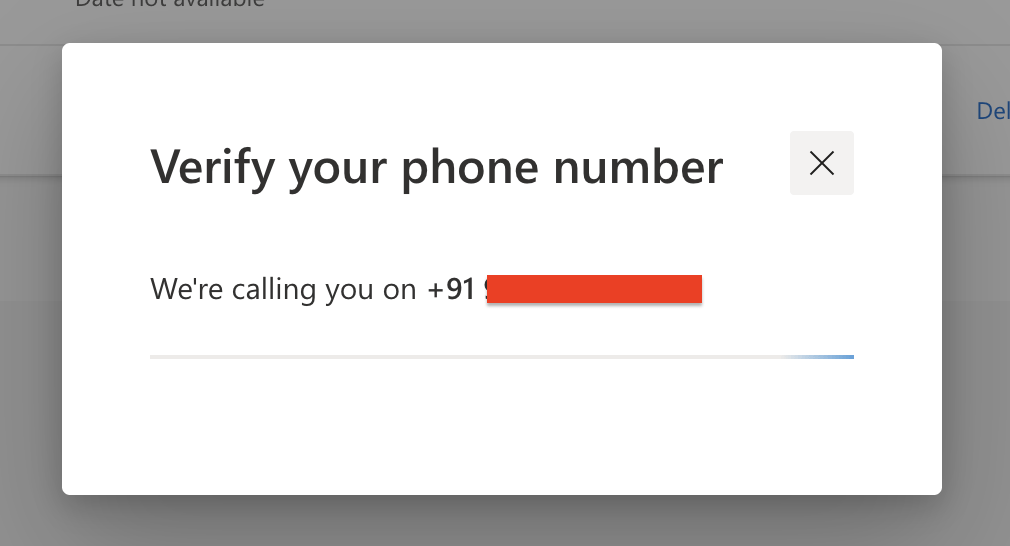
6. Enter the OTP received on your mobile device via call or SMS and complete the process.
Recommended: Setting up Microsoft Authenticator as a Backup
It is highly recommended to configure a backup verification method. The user can add the Microsoft Authenticator app by following these steps:
1. Log in to portal.office.com.
2. Open a new tab in the same browser and go to https://aka.ms/mfasetup.
3. Click Add sign-in method and select Authenticator app.
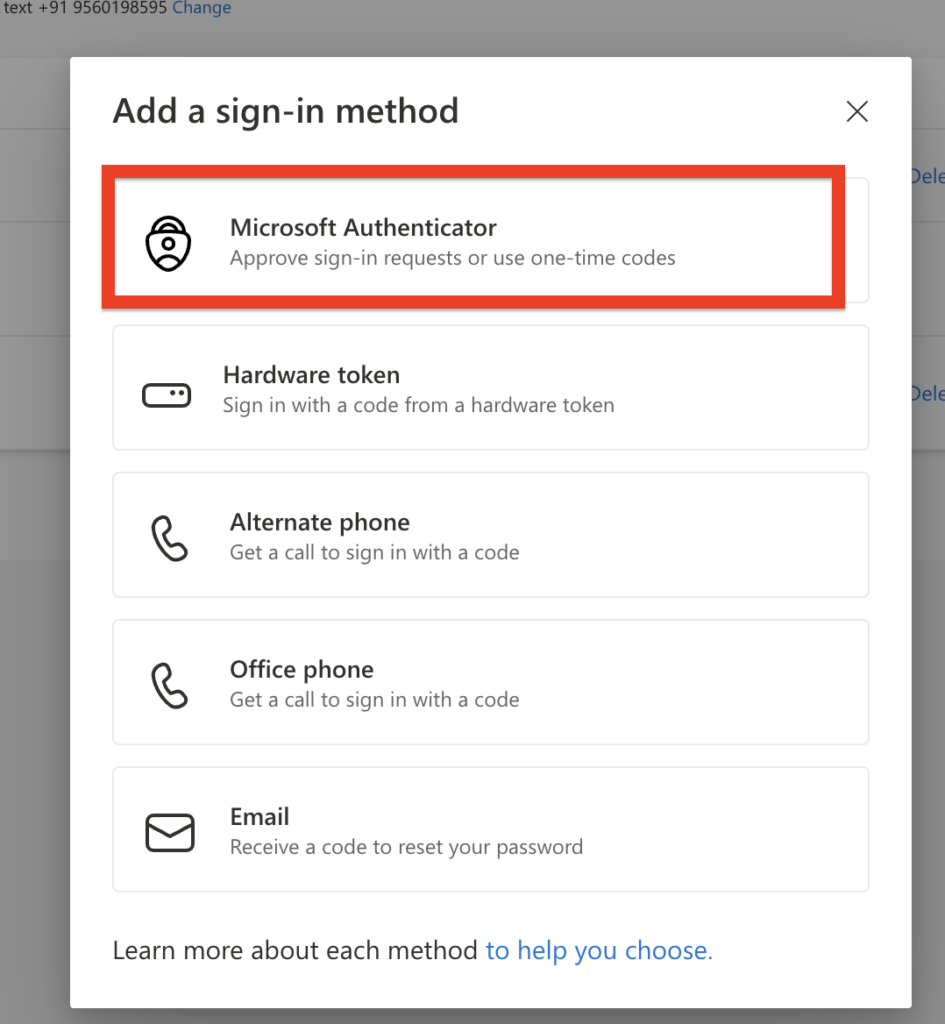
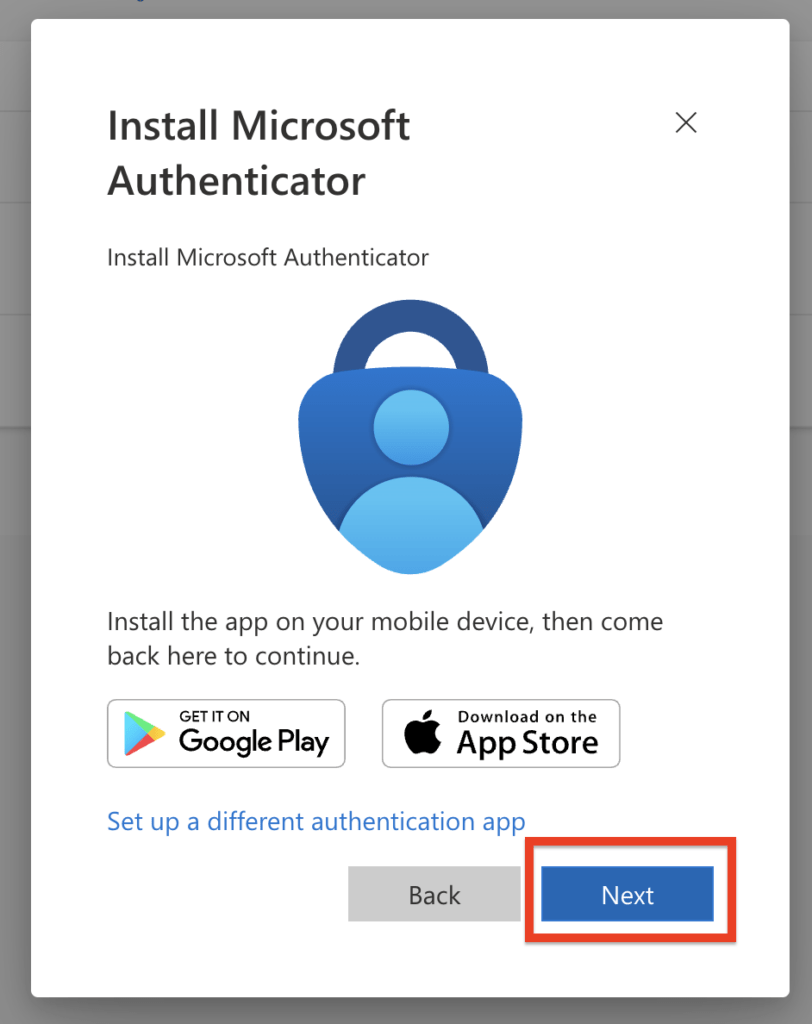
4. Download the Microsoft Authenticator app on your mobile device using the links below and click Next:
– Android: https://go.microsoft.com/fwlink/p/?linkid=2168850
– IOS: https://go.microsoft.com/fwlink/p/?linkid=2168643
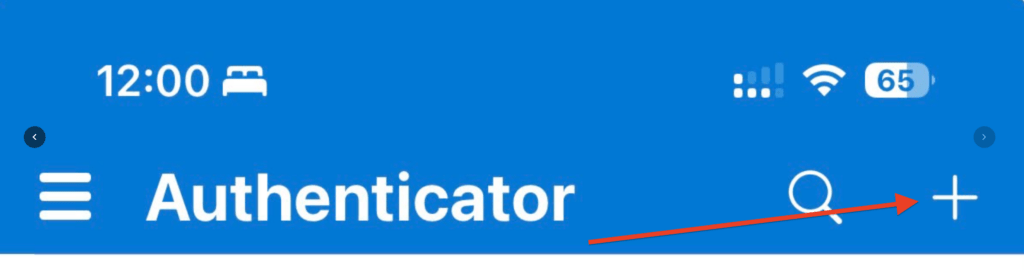
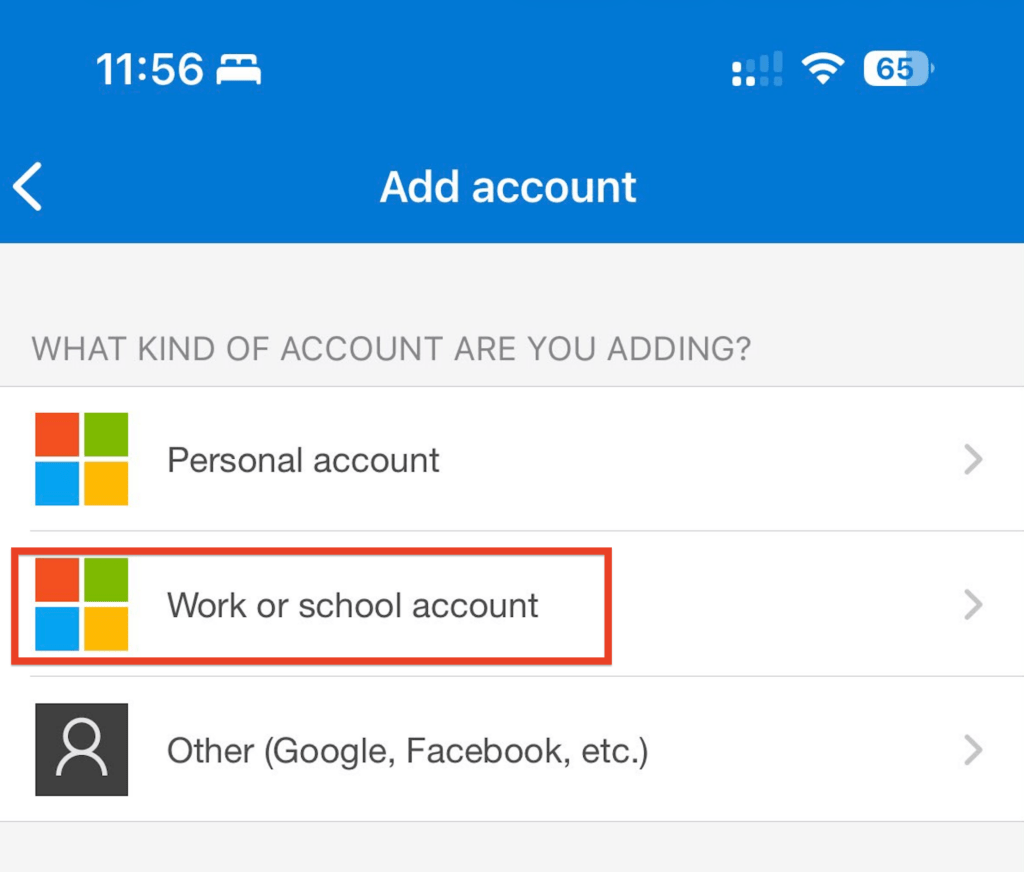
5. Open the app on Mobile, tap the + icon, and select Work or school account.
6. On your computer screen, click Next until a QR code appears. Scan this code using the Authenticator app.
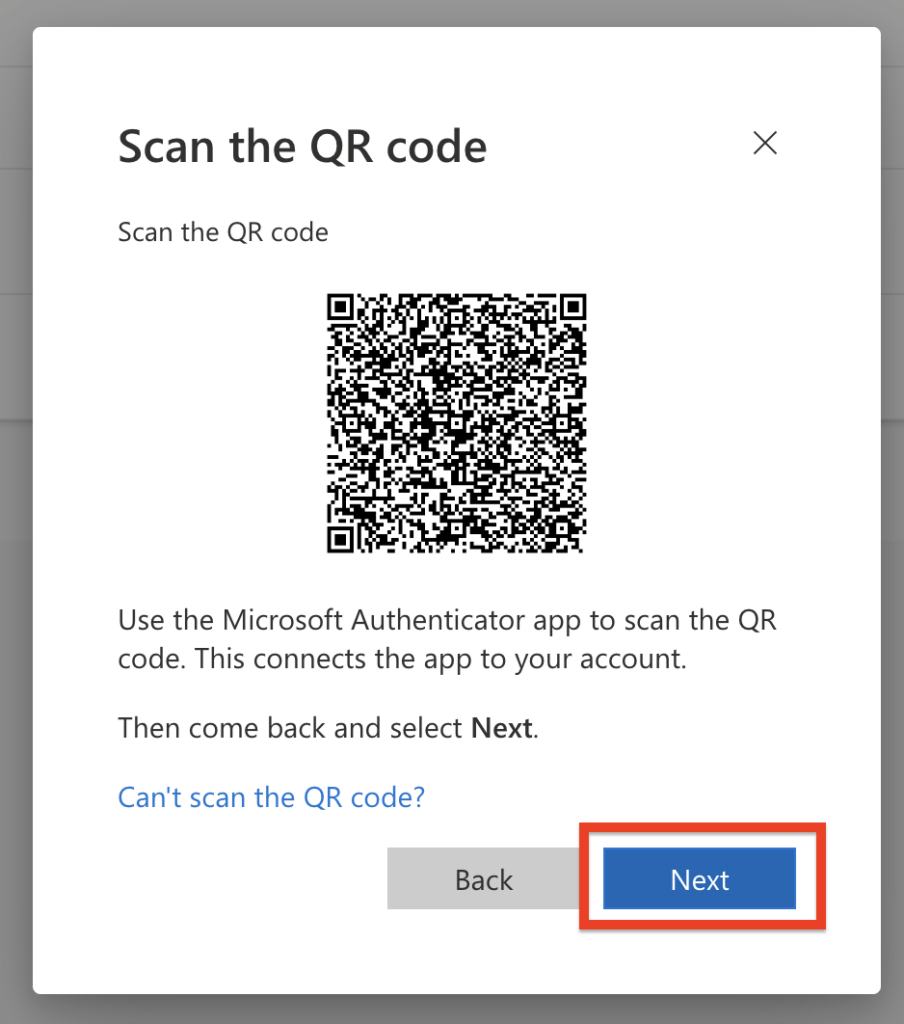
7. Click Next on your computer. A two-digit number will be displayed; enter this number into the prompt on your mobile app (swipe down on your phone notifications if the prompt does not automatically appear).
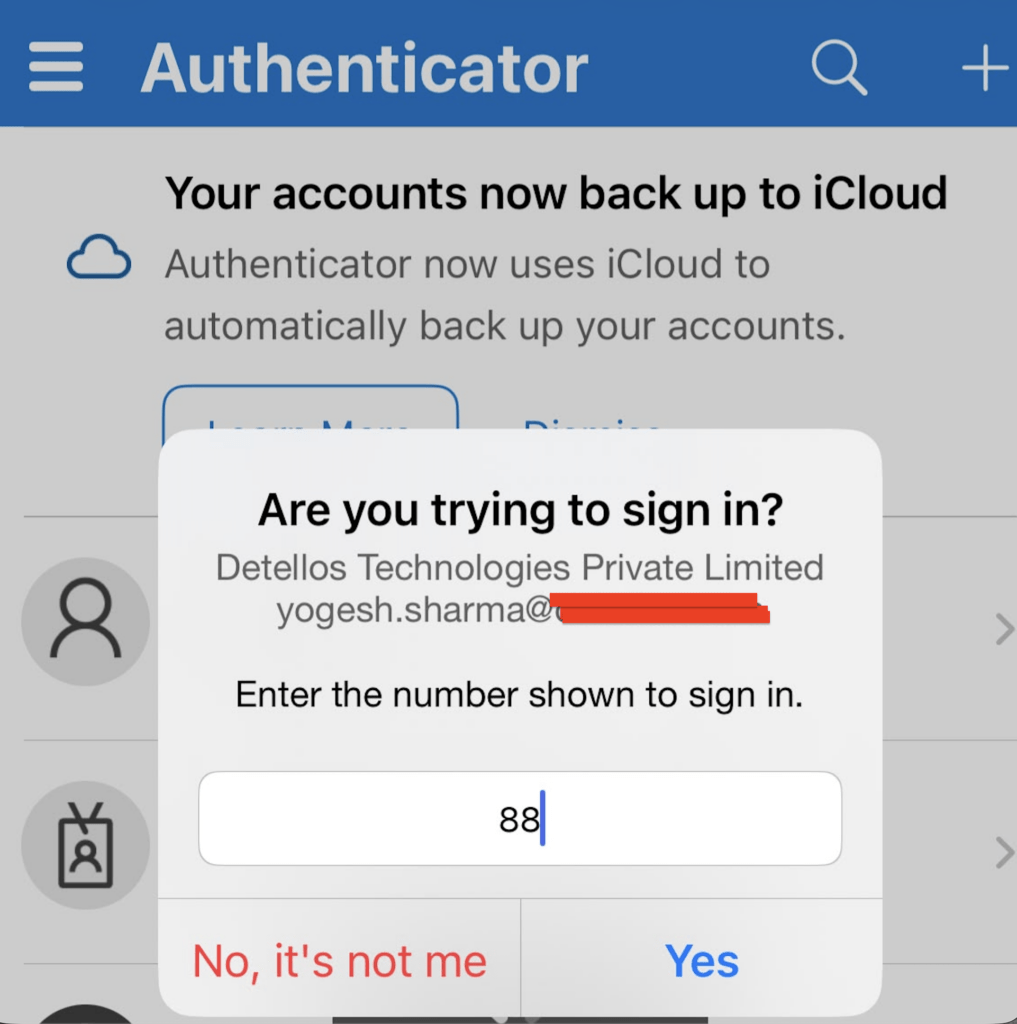
8. Click Yes to approve the request to finalize the setup.
Note: The user can still access their account via internet-based notifications or a 6-digit verification code from the app if mobile network coverage is unavailable.